
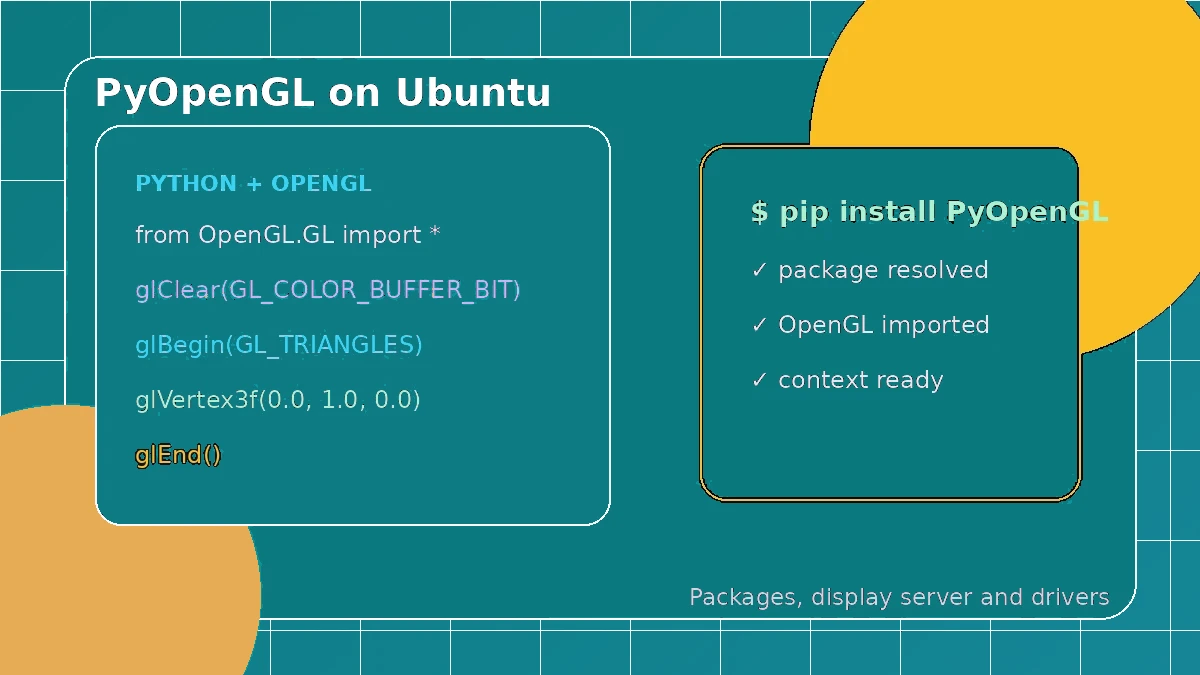
On Ubuntu, PyOpenGL sits on top of both Python packaging and the Linux graphics stack. The package may import correctly while the application still fails because a driver, display connection or window-toolkit library is missing. Treat those parts as separate checks and the setup becomes much easier to understand.
Prepare a clean Python environment
Install Python 3 and virtual-environment support when needed, then create a project environment and install PyOpenGL inside it. Avoid mixing system, user-site and virtual-environment packages unless you know exactly which one Python will load.
Check which graphics driver is active
Ubuntu may use Mesa or a vendor driver. Confirm the expected renderer before debugging your application. Virtual machines, containers and remote sessions may expose a lower OpenGL version or software rendering.
source .venv/bin/activate
python -m pip install PyOpenGL
python -c "import OpenGL; print(OpenGL.__version__)"
Install the toolkit’s system libraries
Your window library may need extra Ubuntu packages. Errors mentioning X11, Wayland, EGL, GLX or a missing shared library usually belong to the context layer, not the PyOpenGL package itself.
Test a minimal context first
Run a tiny example that only opens a window and queries the vendor, renderer and OpenGL version. This tells you whether the basic graphics path works before models, textures or custom shaders are added.
Plan carefully for headless systems
Servers and containers often have no desktop display. Headless rendering may require EGL, OSMesa, a virtual display or other platform-specific setup, so a normal desktop example may not work unchanged.