Learn computer graphics
Explore transformations, buffers, shaders, textures and camera movement in readable Python code.

PyOpenGL is a popular Python binding for OpenGL that helps developers build 2D and 3D graphics applications on Windows, macOS, and Linux.
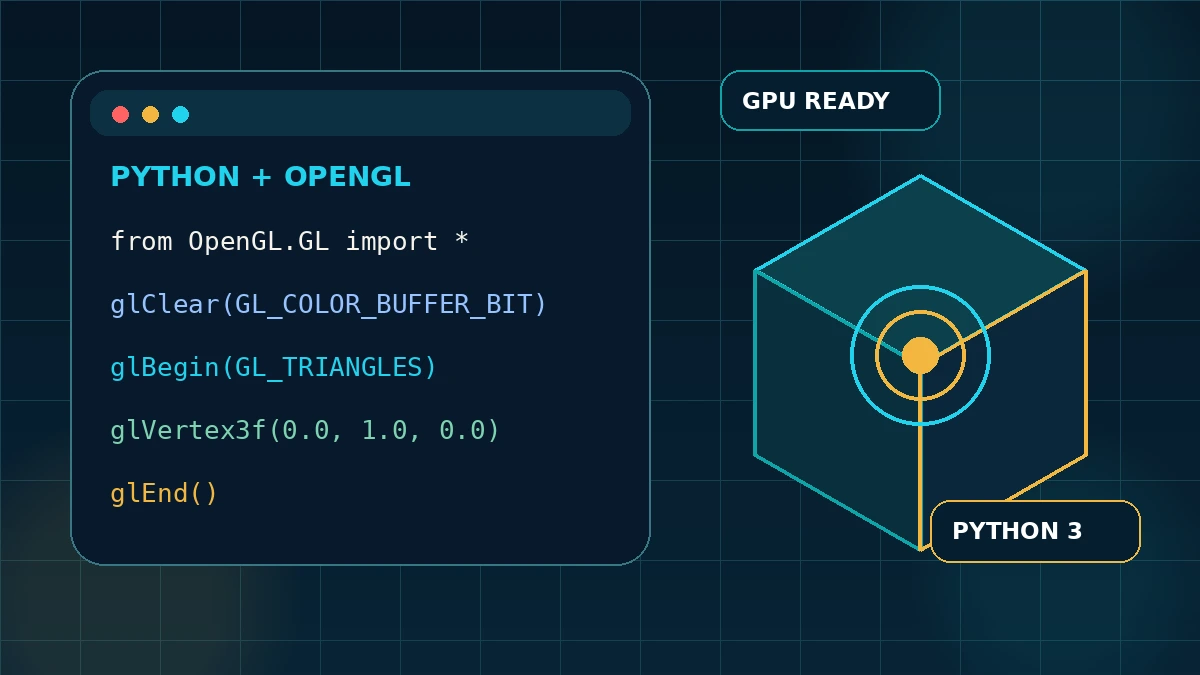
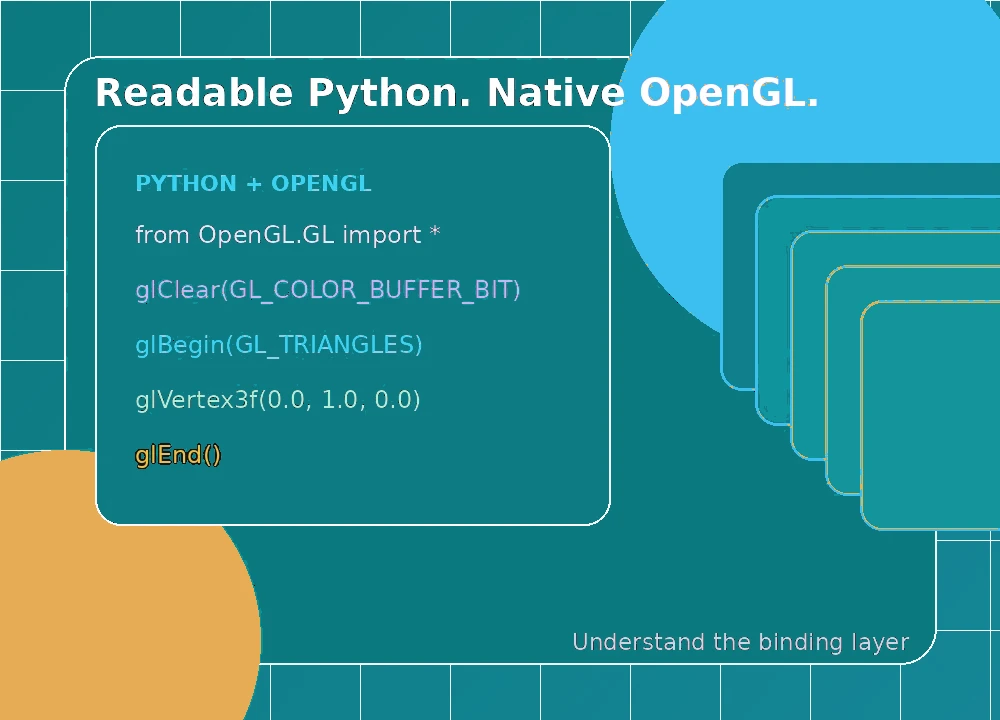
PyOpenGL lets you use OpenGL from Python. In simple terms, it connects your Python code to the graphics features provided by your operating system and GPU driver. It is useful when you want direct control over how 2D or 3D graphics are drawn.
PyOpenGL handles the OpenGL calls, while another library—such as GLUT, GLFW, Pygame or a GUI toolkit—usually creates the window and processes input. Once that window has a working OpenGL context, your Python program can load shaders, send data to the GPU and draw each frame.
That distinction explains many common errors. PyOpenGL may install correctly even when a missing window toolkit, outdated driver or unsupported OpenGL feature prevents anything from appearing on screen. Our guides help you check each layer in the right order.
PyOpenGL keeps the familiar OpenGL workflow while giving you the readability and flexibility of Python.
Call the OpenGL functions and constants supported by your current system and graphics driver.
Organize rendering code with familiar Python modules while still following standard OpenGL documentation.
Use PyOpenGL with GLUT, GLFW, Pygame, Qt or another toolkit that fits your project.
Create and use GLSL shaders when your active OpenGL version supports them.
Turn Python data into interactive plots, geometry viewers and technical graphics.
Use PyOpenGL_accelerate when it is compatible with your setup and provides a real performance benefit.
Read the active OpenGL version and supported extensions before using advanced features.
Try rendering ideas in small Python scripts before moving to a larger engine or compiled project.
A working PyOpenGL project depends on four connected steps.
Your chosen toolkit creates a window and asks the system for an OpenGL context.
PyOpenGL exposes the functions and constants supported by the active context and driver.
Your program uploads vertices, compiles shaders, configures rendering state and makes draw calls.
The toolkit presents the completed frame and keeps the window responsive while the loop continues.
Choose PyOpenGL when you want direct graphics control and are comfortable building the surrounding project structure yourself.
Explore transformations, buffers, shaders, textures and camera movement in readable Python code.
Display simulation data, geometry, signals or other technical information in a custom interface.
Test a graphics technique quickly before committing to a larger production codebase.
Place an OpenGL-powered canvas inside a Python desktop application.
Mix procedural graphics, animation and Python-generated data in small visual projects.
PyOpenGL can be used on major desktop platforms, but the available OpenGL features still depend on your operating system, window toolkit and graphics driver.
Keep your graphics driver updated and use a window toolkit that matches your Python installation.
Check which OpenGL version macOS provides before choosing shaders or features for your project.
Confirm that Mesa or your vendor driver is working, then install any system libraries required by your window toolkit.
Use the same Python interpreter for installation and execution, and keep each project inside its own virtual environment.
Download the PyOpenGL source archive from GitHub. The ZIP is useful for reviewing the source or working with the project manually. For a normal Python setup, installing PyOpenGL inside a virtual environment with pip is usually the simpler option.
Download PyOpenGLNote: This button keeps the original GitHub master-branch source archive link. For a normal installation, use python -m pip install PyOpenGL. This is an independent PyOpenGL guide. Always review the repository, license and files before using a downloaded archive.
Follow these steps in order so package, toolkit and driver issues are easier to identify.
Add PyOpenGL_accelerate only when a compatible build is available and the project benefits from it.
Install the toolkit that will create your window, handle input and manage the event loop.
Confirm that your editor and terminal use the same Python interpreter, then run a small window example before adding complex code.
PyOpenGL gives you flexibility and control, but it also expects you to manage more of the graphics workflow yourself.
Make sure the repository name, owner, branch, license and file structure match the project you expect. Scan the archive and inspect its contents before running setup scripts or using elevated permissions.
Write down your Python version, PyOpenGL version, operating system, window toolkit, GPU renderer, driver and OpenGL version. These details often reveal the real cause of a problem much faster.
| Record | Why it matters | Example check |
|---|---|---|
| PyOpenGL version | APIs and packaging behavior can differ between releases. | OpenGL.__version__ |
| Python version | Wheel availability and compiled extensions depend on it. | python --version |
| Context toolkit | The window and event loop may be the actual failure point. | GLFW, Pygame, GLUT, Qt |
| OpenGL version | Determines which functions and shaders can run. | Query after context creation |
| GPU and driver | The native implementation comes from the installed driver. | Vendor control panel or system report |
Avoid reinstalling everything at once. Start with the Python environment, then check the window and context, shaders, buffers and frame loop.
Run python -m pip show PyOpenGL with the same interpreter that launches the script. Correct the selected environment before reinstalling.
Make sure the OpenGL context exists and is current before the call. Then check whether your driver and context version support that function.
Print the full compile and link logs. Check the GLSL version and test a very small shader before adding lighting, textures or extra calculations.
Confirm that the event loop is running, the viewport is set, visible geometry is being drawn and the frame is actually presented to the window.
Keep reusable data in GPU buffers, group draw calls where possible and reduce repeated Python work. Profile first so you optimize the real bottleneck.
Start with installation, follow the first-frame tutorial, or jump directly to the guide for your platform or error.
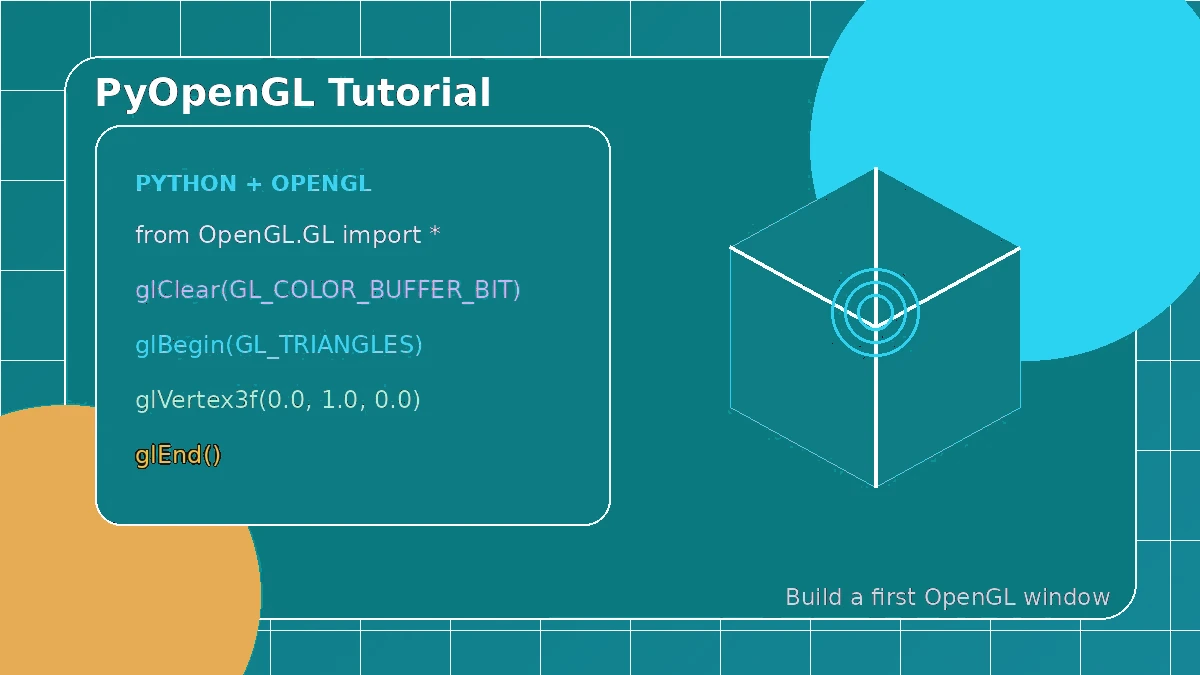
Build a clear mental model of the context, frame loop and first visible triangle.
Read guide →
Set up Python, system libraries and graphics drivers on Ubuntu without mixing the steps.
Read guide →
Work through missing imports, null functions, shader errors and blank windows.
Read guide →Quick, straightforward answers for installation, compatibility, performance and common errors.
PyOpenGL lets Python programs use OpenGL for 2D and 3D graphics. People use it to learn computer graphics, build custom visualizations, prototype rendering ideas and add GPU-powered drawing to Python applications.
No. PyOpenGL is the Python connection to OpenGL. The actual OpenGL implementation comes from your operating system and graphics driver, while another library usually creates the window and OpenGL context.
Create a virtual environment, activate it, and run python -m pip install PyOpenGL. Start with the main package first. PyOpenGL_accelerate is optional and can be added later when it is compatible with your system.
No. PyOpenGL provides the graphics calls, but it normally needs another toolkit—such as GLFW, GLUT, Pygame or Qt—to create the window, handle input and manage the event loop.
Yes. Python makes the code easier to read, but you will still need to learn core OpenGL ideas such as shaders, buffers, coordinates, textures and the render loop. Starting with one triangle is a good first goal.
Support depends on the PyOpenGL release and the packages available for your operating system. Use a current supported Python 3 version, keep pip updated and test the installation inside a clean virtual environment.
Yes, PyOpenGL is open-source software. Check the license included with the package or source archive before redistributing it or using it in a commercial product.
PyOpenGL_accelerate is an optional companion package with compiled components that can reduce overhead in some operations. It is not required for learning, basic examples or many small projects.
Yes. You can use OpenGL for 2D interfaces, plots, sprites, overlays and data displays as well as 3D scenes. Modern 2D projects often use shaders with an orthographic projection.
Begin with installation and a small window example. Once a context is working, use the documentation to look up the functions, constants and parameters used by your project.
The package is often installed in a different Python environment. Check which interpreter runs your script, then run python -m pip show PyOpenGL with that same interpreter.
Usually the OpenGL context is missing, not current, or does not support the requested function. Create the context first, then check your OpenGL version, driver and extension support.
A black window can come from missing draw calls, shader errors, an incorrect viewport, invisible geometry or a frame that is never presented. Check each part of the render loop one at a time.
Check Python and pip first, then confirm your window toolkit, Mesa or vendor driver, display connection and required system libraries. A minimal context test helps separate system issues from application code.
Desktop PyOpenGL is not a direct Android solution. Android uses OpenGL ES and a mobile application lifecycle, so you normally need a Python framework or binding that specifically supports Android.
Yes, as long as your active context and graphics driver support the required OpenGL and GLSL versions. Always check shader compile and link logs when something fails.
Slow rendering often comes from many small Python-to-OpenGL calls, repeated state changes or uploading the same data every frame. Keep reusable data in buffers, batch work and profile before optimizing.
Create the OpenGL context first, then query the version, vendor and renderer strings. The driver can only provide this information after a valid context is current.
No. The website button downloads a source ZIP from GitHub. Pip installs the Python package through package tooling and is usually the easier choice for a normal project setup.
Reduce the project to a small window and one draw call. Confirm the Python environment, record driver and OpenGL details, read shader logs and add features back one at a time.