
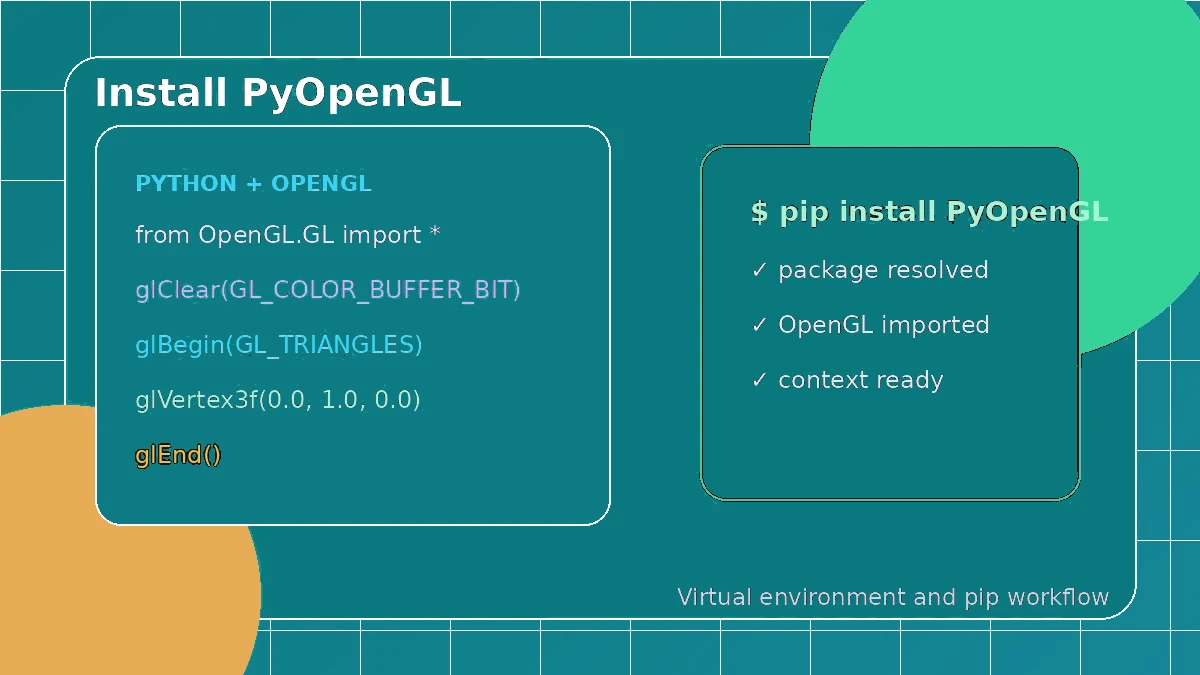
Installing PyOpenGL is usually straightforward, but Python environments can make a simple setup feel confusing. The safest approach is to create one virtual environment for the project, install the package through that interpreter and test the import before adding a window toolkit or graphics code.
Create a project environment
Create the virtual environment inside your project folder and activate it before installing anything. The exact activation command changes by operating system, but the goal is the same: one project with one clear set of dependencies.
Install the main PyOpenGL package
Use python -m pip so the installer is tied to the Python interpreter you selected. A successful install means the Python package is available; it does not yet prove that your system can create an OpenGL window.
python -m pip install --upgrade pip
python -m pip install PyOpenGL
python -c "import OpenGL; print(OpenGL.__version__)"
Treat acceleration as optional
PyOpenGL_accelerate can improve some operations, but it is not required for a normal setup. Start with PyOpenGL alone. Add acceleration later only when a compatible build is available and profiling shows that it would help.
Confirm the import and interpreter
Run a small import test in the same terminal and print the interpreter path. If your editor still cannot find OpenGL, select the virtual environment as the project interpreter instead of installing the package into several different locations.
Install the window toolkit separately
PyOpenGL does not create the window or event loop. Install the toolkit your project uses, then diagnose missing native libraries, display errors or window failures as toolkit or system issues rather than automatically reinstalling PyOpenGL.